> For the complete documentation index, see [llms.txt](https://docs.dextrabot.com/llms.txt). Markdown versions of documentation pages are available by appending `.md` to page URLs; this page is available as [Markdown](https://docs.dextrabot.com/farm/extended-farming-module.md).
# Extended Farming Module
### Getting Your API Credentials
The API credentials are required for farming and act as your authentication keys. Follow these steps to obtain them:
#### Step-by-Step Guide
**1. Access the Platform**
* Navigate to
* Connect your wallet and sign the connection request
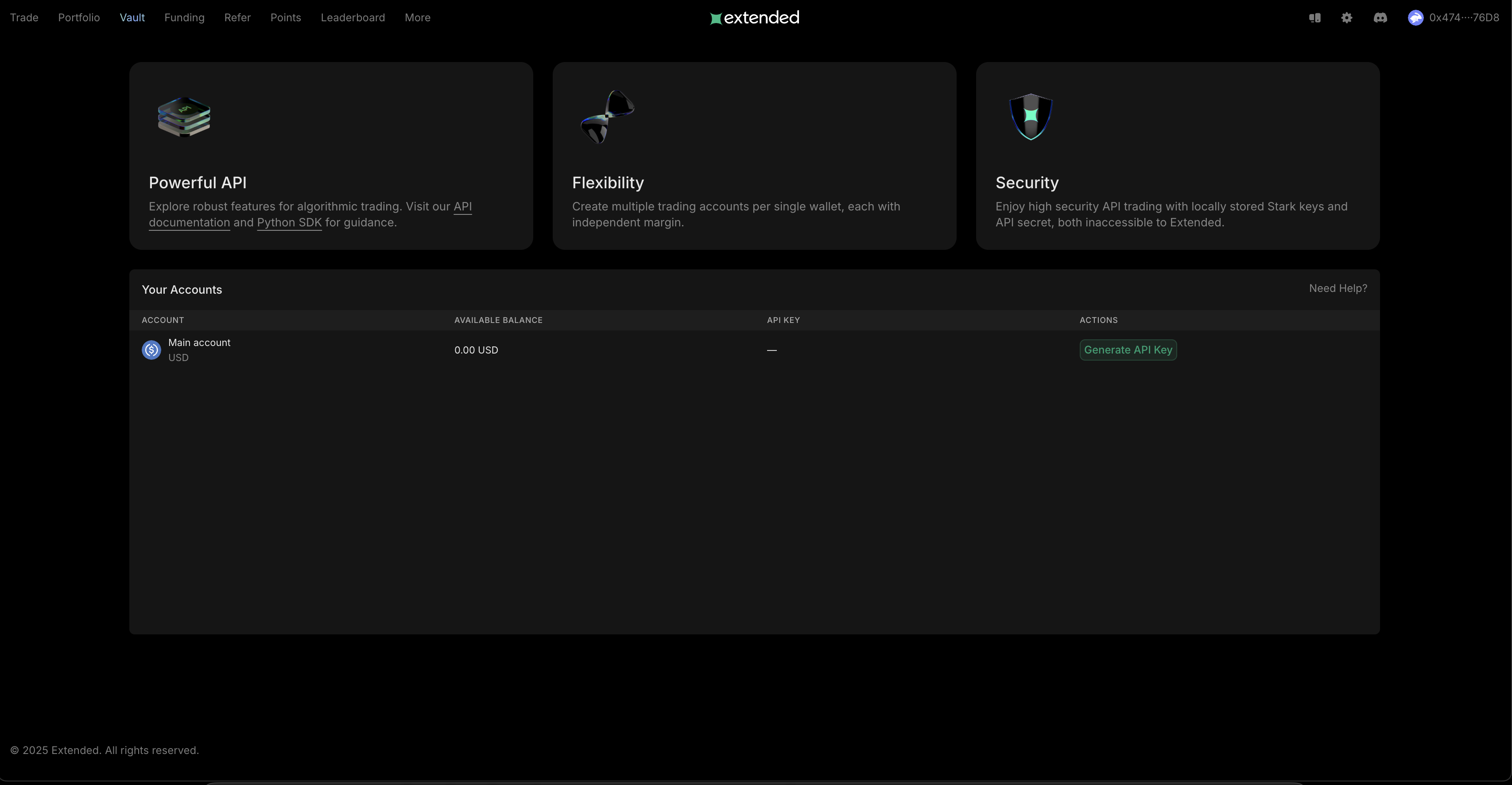
* Ensure your account shows "Main account" in the Your Accounts section
**2. Generate API Key**
* Go to API Management:
* Click the **"Generate API Key"** button
* The system will create your unique API credentials
**3. View API Details**
* Once generated, click **"Show API Details"** button
* A modal window will display all your credentials
⚠️ **Warning**: Never share your private Stark key with untrusted parties; it provides full access to your account's funds.
**4. Extract Your Credentials**
Copy each of the following values using the copy button (📋):
* **API Key**: Your unique API identifier
* **Stark Key Public**: Public portion of your Stark key (starts with `0x`)
* **Stark Key Private**: Private key for signing transactions (starts with `0x`)
* **Vault Number**: Your vault identifier
* **Client ID**: Your client number
**5. Configure the Farming Module**
* Paste each copied value into the corresponding field in the farming module
* The values will be masked for security once entered
### Module Configuration
#### Select Pair
* **Selection**: Dropdown menu with available trading pairs
* **Options**: All active perpetual futures pairs on Extended
#### Trade Per Hour or Day
* **Description**: Determines how frequently the bot places new trades
#### Leverage
* **Description**: Multiplier for your position size
#### Direction
Choose your trading direction strategy:
* **LONG**: Opens long positions only (betting on price increase)
* **SHORT**: Opens short positions only (betting on price decrease)
* **RANDOM**: Randomly alternates between long and short positions
#### Order Type
* **MARKET**: Immediate execution at current market price
* **LIMIT**: Set specific entry price
* **RANDOM**: Randomly choose between order types
#### Take Profit %
* **Format**: Percentage value
* **Description**: Automatically closes position at specified profit
#### Stop Loss %
* **Format**: Percentage value
* **Description**: Automatically closes position at specified loss
### Module Controls
#### Connect Button
* **Function**: Initiates the connection to Extended Exchange
* **Color**: Green when ready to connect
* **Status**: Validates all credentials before connecting
#### Cancel Button
* **Function**: Closes the configuration modal
* **Warning**: Any unsaved changes will be lost
---
# Agent Instructions
This documentation is published with GitBook. GitBook is the documentation platform designed so that both humans and AI agents can read, navigate, and reason over technical content effectively. Learn more at gitbook.com.
## Querying This Documentation
If you need additional information that is not directly available in this page, you can query the documentation dynamically by asking a question.
Perform an HTTP GET request on the current page URL with the `ask` query parameter, and the optional `goal` query parameter:
```
GET https://docs.dextrabot.com/farm/extended-farming-module.md?ask=&goal=
```
`ask` is the immediate question: it should be specific, self-contained, and written in natural language.
`goal` is optional and describes the broader end goal you are ultimately trying to accomplish on behalf of the user. GitBook uses it to tailor the answer towards what is most useful for that goal.
The response will contain a direct answer to the question and relevant excerpts and sources from the documentation.
Use this mechanism when the answer is not explicitly present in the current page, you need clarification or additional context, or you want to retrieve related documentation sections.