> For the complete documentation index, see [llms.txt](https://docs.dextrabot.com/llms.txt). Markdown versions of documentation pages are available by appending `.md` to page URLs; this page is available as [Markdown](https://docs.dextrabot.com/dca-bot/extended-dca-bot.md).
# Extended DCA Bot
Your smart dollar-cost averaging tool for Extended exchange perpetual trading.
The Extended DCA Bot automatically places multiple orders as the price moves against your position - buying more as price drops (Long) or selling more as price rises (Short). This strategy lowers your average entry price, giving you a better chance to profit when the market reverses. Combined with the built-in calculator, you can plan your entire strategy before committing a single dollar.
***
### Prerequisites
Before you start, make sure you have:
* **Extended API Wallet** added to Dextrabot (see [Wallet Management](https://docs.dextrabot.com/copy-trade/wallet-management))
* **USDC balance** in your Extended wallet (minimum depends on your settings)
* **Basic understanding** of leverage and perpetual trading
***
### Quick Start (5 Minutes)
1. Go to **Extended DCA Bot** from the top navigation
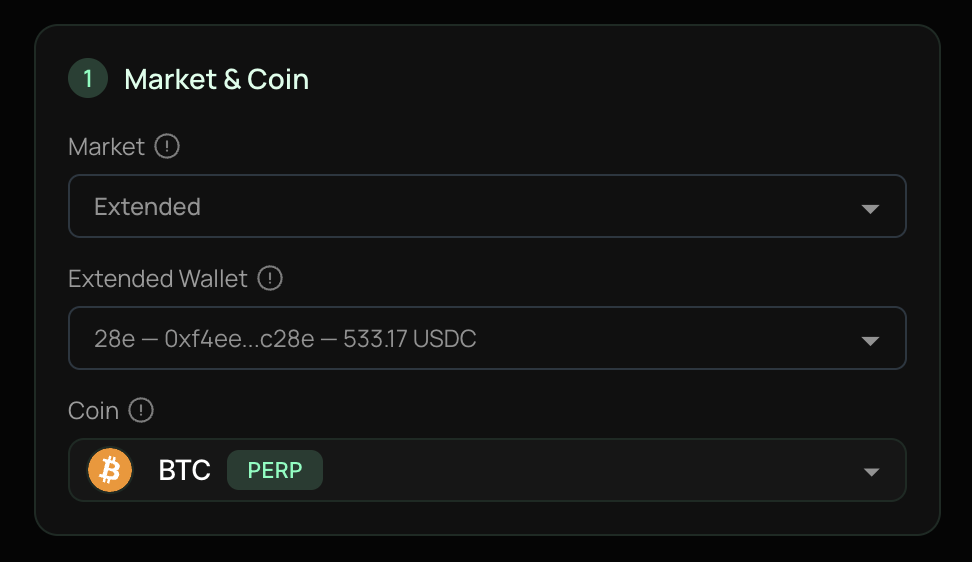
2. Select your **Extended wallet** from the dropdown
3. Pick your **trading pair** (e.g., BTC PERP)
4. Set your **direction** (Long, Short, or Smart) and **leverage**
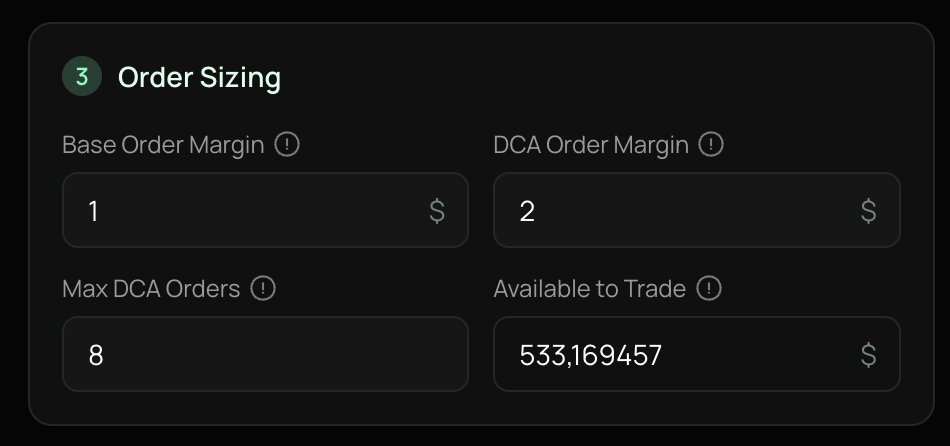
5. Enter your **Base Order Margin** and **DCA Order Margin**
6. Set **Max DCA Orders** (how many safety orders)
7. Set your **Take Profit %** (and optionally **Stop Loss %**)
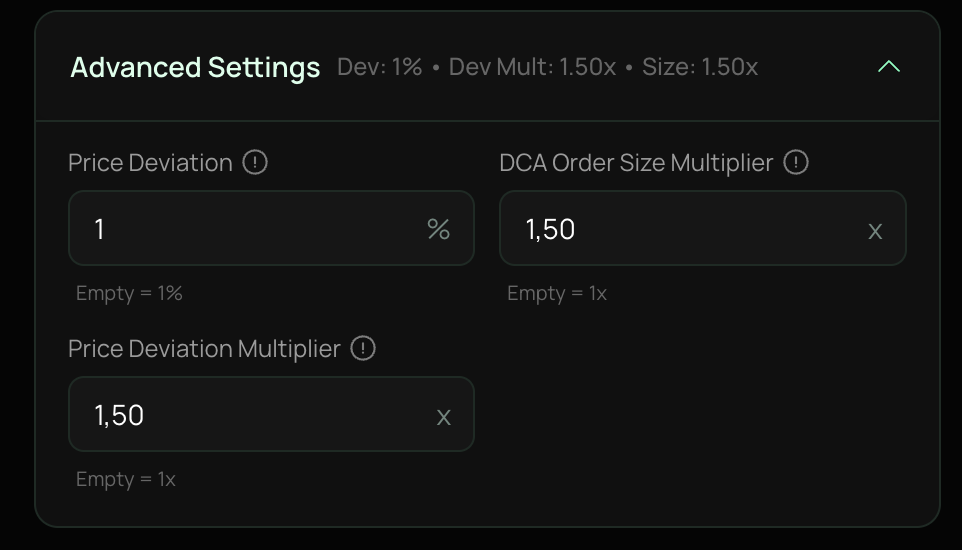
8. (Optional) Expand **Advanced Settings** to adjust Price Deviation, Size Multiplier, and Deviation Multiplier
9. Review the **Order Details** table - all orders should show "Safe"
10. Click **Start DCA Bot**
***
### Getting Your API Keys
Follow these steps to add your Extended wallet to Dextrabot:
#### Step 1: Get API Credentials from Extended Exchange
1. Go to [Extended API Management](https://app.extended.exchange/api-management)
2. Find your **Main Account** row
3. Click **Generate API Key**
4. Click **Show API Details** to reveal your credentials
You will need:
* API Key
* Stark Key Public
* Stark Key Private
* Vault Number
#### Step 2: Add Wallet to Dextrabot
1. Go to [Dextrabot Wallet Management](https://app.dextrabot.com/wallet-management)
2. Click **Add Account**
3. Select **Add API Wallet** → **EXTENDED**
4. Fill in the required fields:
* **Wallet Name**: A label for easy identification
* **Login Address**: Your trading wallet address
* **API Key**: From Extended
* **Stark Key Public**: From Extended
* **Stark Key Private**: From Extended
* **Vault Number**: From Extended
5. Click **Save** to add your wallet
***
### Step-by-Step Guide
#### Step 1: Connect & Select Your Wallet
**If you're not logged in:**
1. Click the **Connect** button in the top-right corner
2. Sign the message with your wallet to authenticate
**Select your wallet:**
* Use the **Extended Wallet** dropdown under "Market & Coin"
* Your wallet address and USDC balance will be displayed
* The **Available to Trade** field shows your current balance
***
#### Step 2: Choose Your Market & Coin
| Field | Description |
| ------------------- | ---------------------------------------------------------- |
| **Market** | Select "Extended" (currently the only supported market) |
| **Extended Wallet** | Your connected wallet with USDC balance |
| **Coin** | The perpetual pair you want to trade (BTC, ETH, SOL, etc.) |
**Tips:**
* When you select a coin, the **Entry Price** automatically populates with the current market price
* You can search coins by typing in the dropdown
* The coin shows its maximum leverage next to the ticker
***
#### Step 3: Configure Position Setup
**Direction**
| Option | When to Use |
| --------- | --------------------------------------------------------------- |
| **Short** | You expect the price to go DOWN. Bot sells more as price rises. |
| **Long** | You expect the price to go UP. Bot buys more as price drops. |
| **Smart** | Let the bot decide based on market momentum. |
**Smart Direction Mode**
When Smart mode is enabled, the bot checks the **Extended 24h price change** before each trade and automatically determines the position direction.
| Condition | Result |
| ------------------------------- | ---------------------------- |
| 24h change is **positive** (+%) | → Opens a **Long** position |
| 24h change is **negative** (-%) | → Opens a **Short** position |
> ⚠️ **Note:** Order details and calculations are not available in Smart mode since the direction is dynamic.
> 💡 **Tip:** To preview the DCA order table for Long or Short scenarios, switch the Direction selector to the desired mode.
***
#### Step 4: Set Order Sizing
| Parameter | Description | Minimum |
| ---------------------- | -------------------------------------------- | ------- |
| **Base Order Margin** | The margin for your first (entry) order | $1 |
| **DCA Order Margin** | The starting margin for DCA orders | $1 |
| **Max DCA Orders** | How many additional orders the bot can place | 1-50 |
| **Available to Trade** | Your wallet balance (read-only) | - |
**How it works:**
* **Base Order** places a limit order near the mid price and waits to be filled. If not filled, the bot automatically updates the order price.
* **DCA Orders** trigger when price drops (Long) or rises (Short) by your Price Deviation %
* Each DCA order can have increasing margin based on the Size Multiplier
***
#### Step 5: Configure Exit Strategy
| Parameter | Description |
| --------------- | -------------------------------------------------- |
| **Take Profit** | Target profit % from your average entry price |
| **Stop Loss** | Maximum loss % (optional - leave empty to disable) |
**Take Profit Calculation:**
* Long: TP Price = Average Entry × (1 + TP%)
* Short: TP Price = Average Entry × (1 - TP%)
**Stop Loss Calculation:**
* Long: SL Price = Order Fill Price × (1 - SL%)
* Short: SL Price = Order Fill Price × (1 + SL%)
*Each DCA order has its own stop loss based on its fill price. When any order's stop loss is triggered, the entire position closes.*
***
#### Step 6: Advanced Settings
Click **Advanced Settings** to reveal additional parameters:
| Parameter | Default | Description |
| ------------------------------ | ------- | -------------------------------------------------- |
| **Price Deviation** | 1% | Price drop % between each DCA order |
| **DCA Order Size Multiplier** | 1.50x | Each DCA order margin = previous × this multiplier |
| **Price Deviation Multiplier** | 1.50x | Each gap = previous gap × this multiplier |
**How Deviations Work (Long Position Example):**
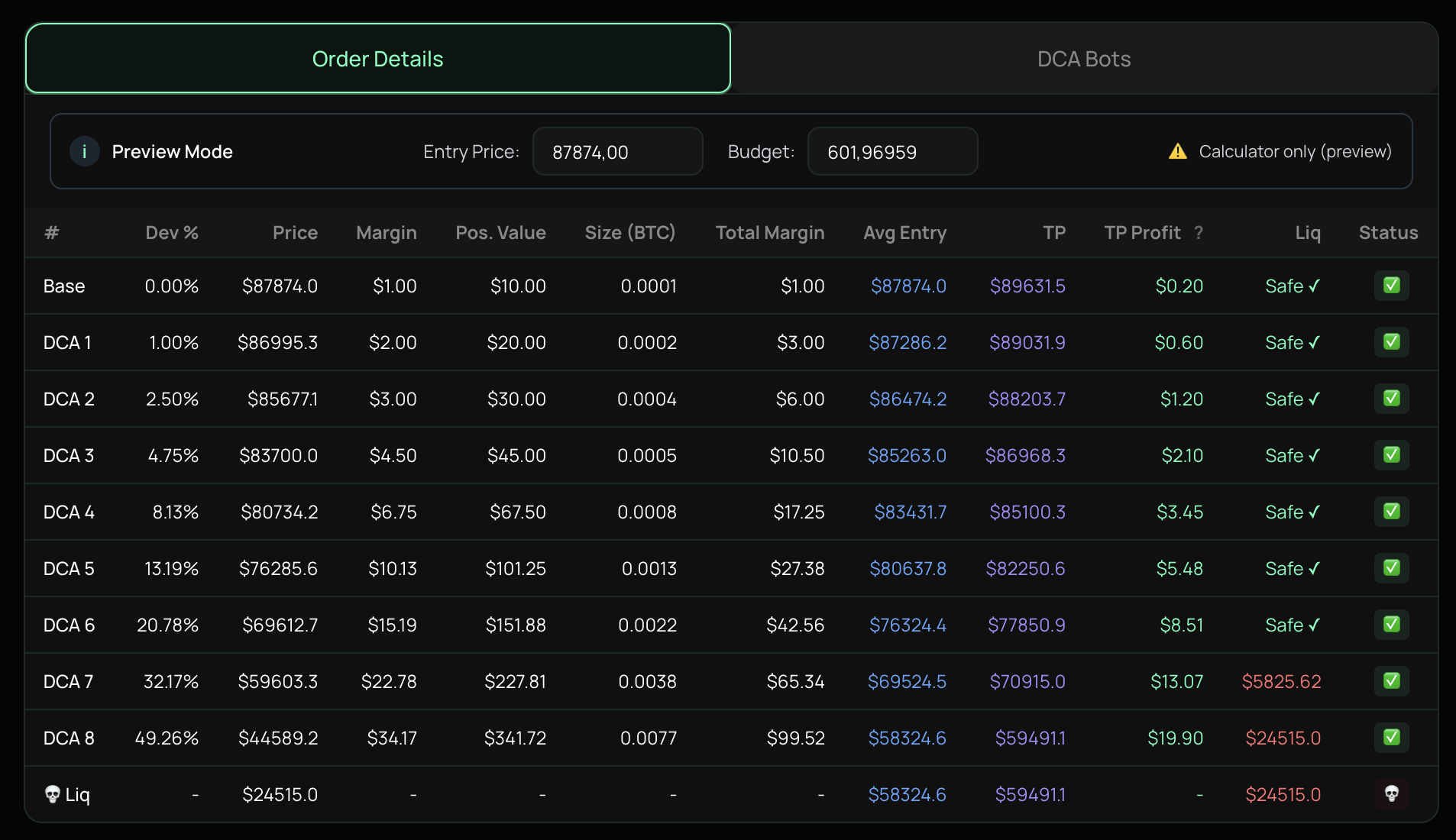
| Order | Deviation from Entry | Price (if Entry = $87,874) |
| ----- | -------------------- | -------------------------- |
| Base | 0% | $87,874.0 |
| DCA 1 | 1.00% | $86,995.3 |
| DCA 2 | 2.50% | $85,677.1 |
| DCA 3 | 4.75% | $83,700.0 |
| DCA 4 | 8.13% | $80,734.2 |
| DCA 5 | 13.19% | $76,285.6 |
**How Size Multiplier Works:**
| Order | Margin (1.5x multiplier, $2 base DCA) |
| ----- | ------------------------------------- |
| DCA 1 | $2.00 |
| DCA 2 | $3.00 |
| DCA 3 | $4.50 |
| DCA 4 | $6.75 |
| DCA 5 | $10.13 |
***
### Understanding the Calculator
#### Preview Mode
Before starting a bot, use **Preview Mode** to plan your strategy:
* Enter any **Entry Price** to simulate different scenarios
* Modify your **Budget** to see how much capital you need
* All calculations update in real-time
The yellow warning "Calculator only (preview)" indicates you're in planning mode.
***
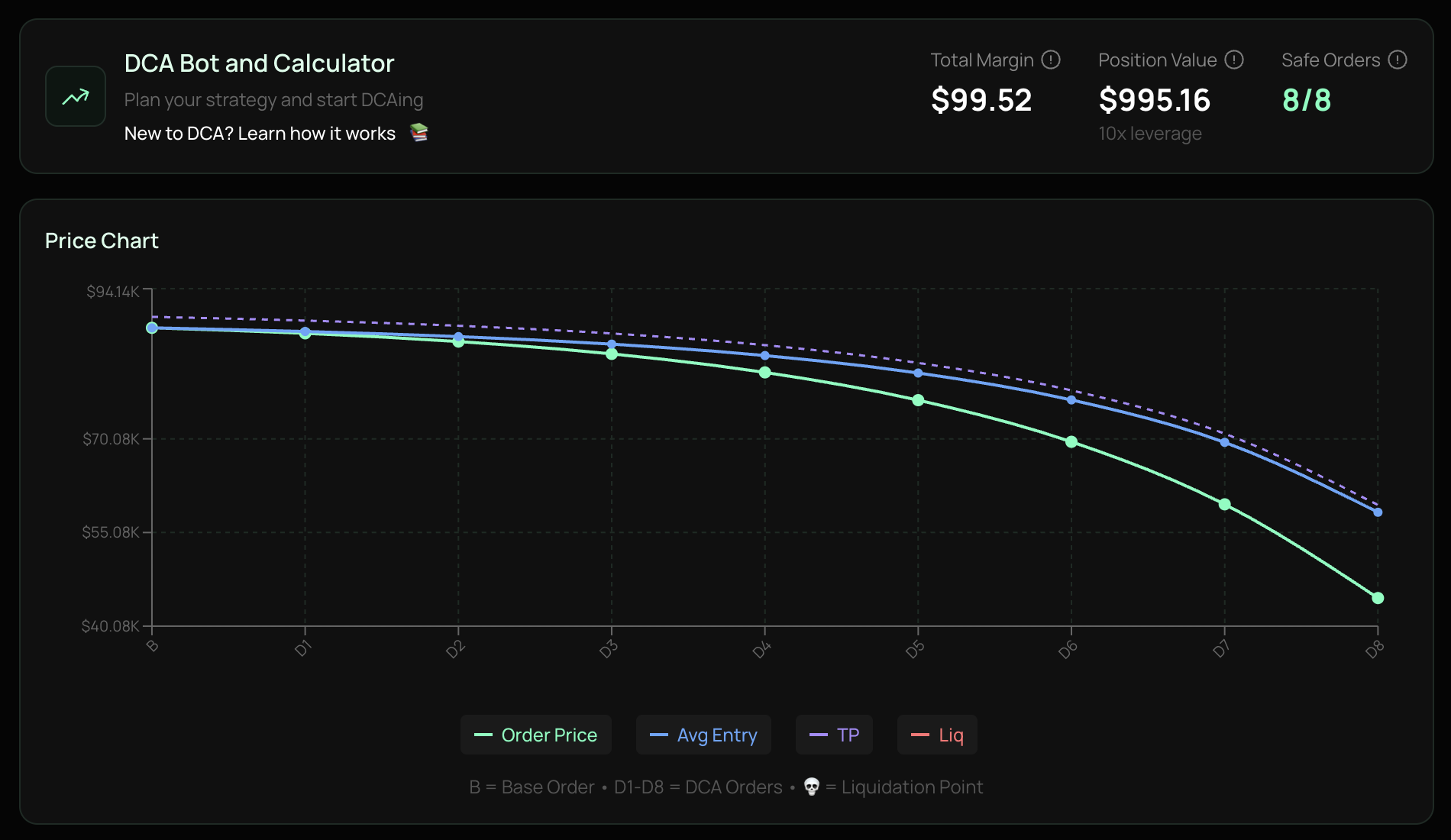
#### Price Chart
The interactive chart visualizes your strategy:
| Line | Color | Meaning |
| --------------- | --------------- | ----------------------------------------- |
| **Order Price** | Green (solid) | Where each DCA order triggers |
| **Avg Entry** | Blue (solid) | Your average entry price after each order |
| **TP** | Purple (dashed) | Take profit target price |
| **Liq** | Red | Liquidation price |
**Legend:**
* **B** = Base Order
* **D1-D8** = DCA Orders 1 through 8
* **Skull icon** = Liquidation Point
***
#### Order Details Table
Each row represents an order with these columns:
| Column | Description |
| ---------------- | ----------------------------------------- |
| **#** | Order label (Base, DCA 1, DCA 2, etc.) |
| **Dev %** | Price deviation from entry |
| **Price** | Trigger price for this order |
| **Margin** | USD margin for this order |
| **Pos. Value** | Position value (Margin × Leverage) |
| **Size (BTC)** | Coin quantity this order buys/sells |
| **Total Margin** | Cumulative margin up to this order |
| **Avg Entry** | Your average entry after this order fills |
| **TP** | Take profit price based on average entry |
| **TP Profit** | Dollar profit if TP hits at this level |
| **Liq** | Liquidation price at this order level |
| **Status** | Safety indicator |
***
#### Order Status Indicators
| Status | Meaning |
| -------------------------- | ---------------------------------------------- |
| **Safe** (green checkmark) | Order is healthy with sufficient margin buffer |
| **Warning** (orange) | Order approaches liquidation or exceeds budget |
| **Liquidated** (red) | Position would be liquidated at this price |
| **Cancelled** | Position closed before this order executes |
**Important:** All orders should show "Safe" before starting your bot. The **Safe Orders** counter (e.g., "8/8") shows how many orders are safe out of your total.
***
### Managing Your DCA Bots
#### DCA Bots Tab
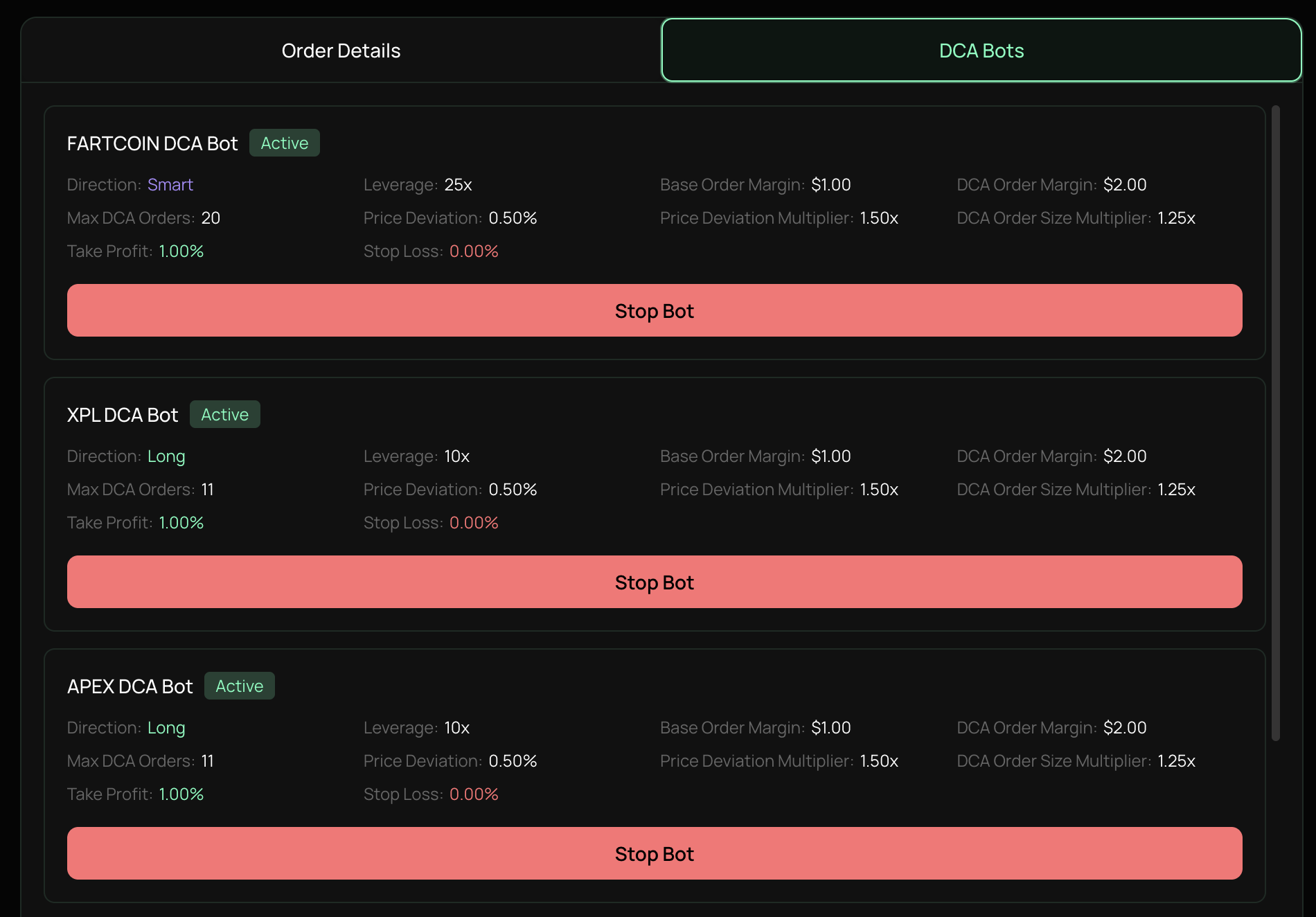
Switch to the **DCA Bots** tab to view and manage your active bots:
| Field | Description |
| ------------------------------ | ------------------------------------------- |
| **Bot Name** | Coin + "DCA Bot" (e.g., "FARTCOIN DCA Bot") |
| **Status** | Active or Stopped |
| **Direction** | Long, Short, or Smart |
| **Leverage** | Current leverage setting |
| **Max DCA Orders** | Number of safety orders |
| **Price Deviation** | Gap between orders |
| **Price Deviation Multiplier** | Gap scaling factor |
| **Base Order Margin** | Initial order size |
| **DCA Order Margin** | Safety order base size |
| **DCA Order Size Multiplier** | Order size scaling |
| **Take Profit** | TP percentage |
| **Stop Loss** | SL percentage (0.00% = disabled) |
#### Bot Controls
* **Stop Bot** (red button): Pauses the bot and closes all orders
***
### Fee Structure
| Fee Type | Amount |
| ------------------------- | ----------------------------- |
| **Dextrabot Fee** | 0.01% per trade |
| **Extended Trading Fees** | Standard exchange rates apply |
***
**Need help?** Join our [Discord community](https://discord.gg/dextrabot) now!
---
# Agent Instructions
This documentation is published with GitBook. GitBook is the documentation platform designed so that both humans and AI agents can read, navigate, and reason over technical content effectively. Learn more at gitbook.com.
## Querying This Documentation
If you need additional information that is not directly available in this page, you can query the documentation dynamically by asking a question.
Perform an HTTP GET request on the current page URL with the `ask` query parameter, and the optional `goal` query parameter:
```
GET https://docs.dextrabot.com/dca-bot/extended-dca-bot.md?ask=&goal=
```
`ask` is the immediate question: it should be specific, self-contained, and written in natural language.
`goal` is optional and describes the broader end goal you are ultimately trying to accomplish on behalf of the user. GitBook uses it to tailor the answer towards what is most useful for that goal.
The response will contain a direct answer to the question and relevant excerpts and sources from the documentation.
Use this mechanism when the answer is not explicitly present in the current page, you need clarification or additional context, or you want to retrieve related documentation sections.